
Dashboard Onboarding
Set up the Scrawn Dashboard and configure Dodo Payments
When you first open the dashboard, you will enter an onboarding flow that requires your Dodo Payments API keys and Product IDs.
Dodo API Keys
To get your Dodo Live API Key and Dodo Test API Key:
- Go to the Dodo Payments dashboard.
- Navigate to Developer > API Keys in the sidebar.
- While in Test Mode, click Add API Key to generate your Test API key.
- Click the Live Mode toggle in the bottom left corner to switch environments.
- Generate your Live API key in the same way.
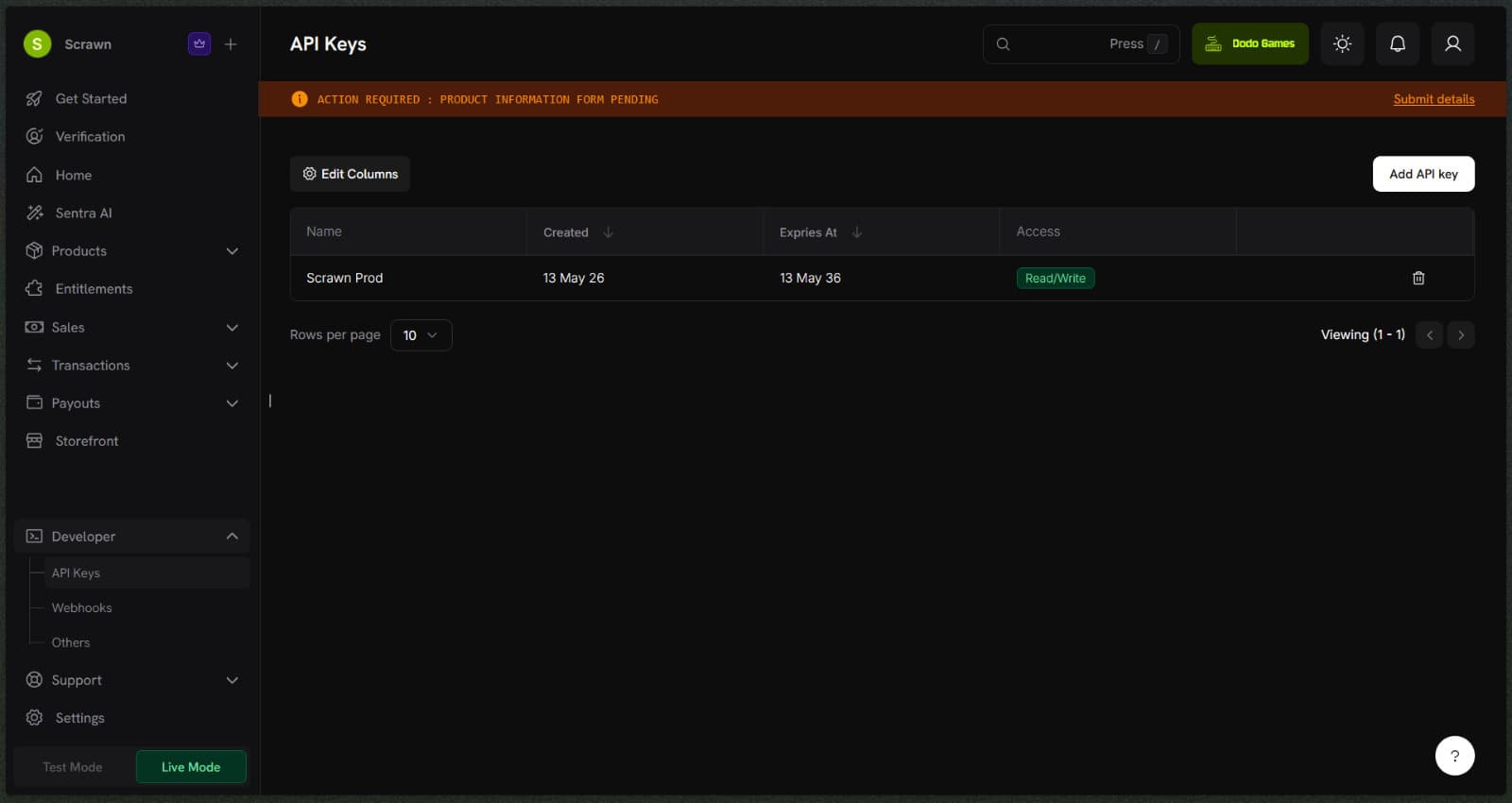
Copy and paste both of these keys into the onboarding flow in your Scrawn Dashboard.
Dodo Products
Next, you need to create a product in Dodo to collect payments. You will need to create two products: one in Test Mode and one in Live Mode.
- In the Dodo Payments dashboard, navigate to Products > Product in the sidebar.
- Click to Add New Product.
- Fill in the Basic Details (Product Name, Brand, Tax Category, etc.). You can set these to whatever makes sense for your application.
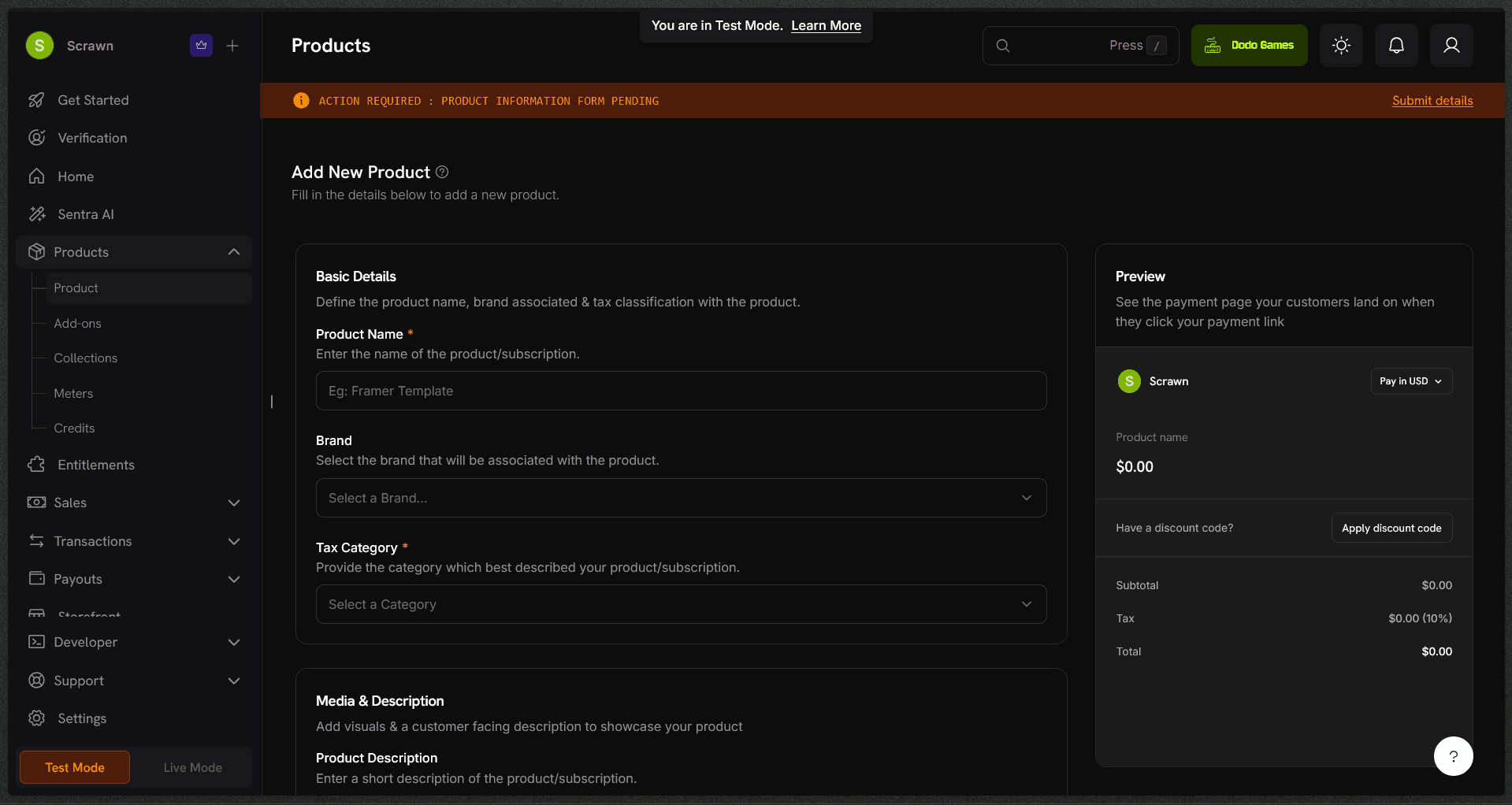
- Scroll down to the Pricing section.
- CRITICAL STEP: Ensure you select One Time pricing, and check the box for Pay What You Want. Set the Minimum Price to
$0. (This is the only configuration value Scrawn strictly requires; the rest can be whatever you want).
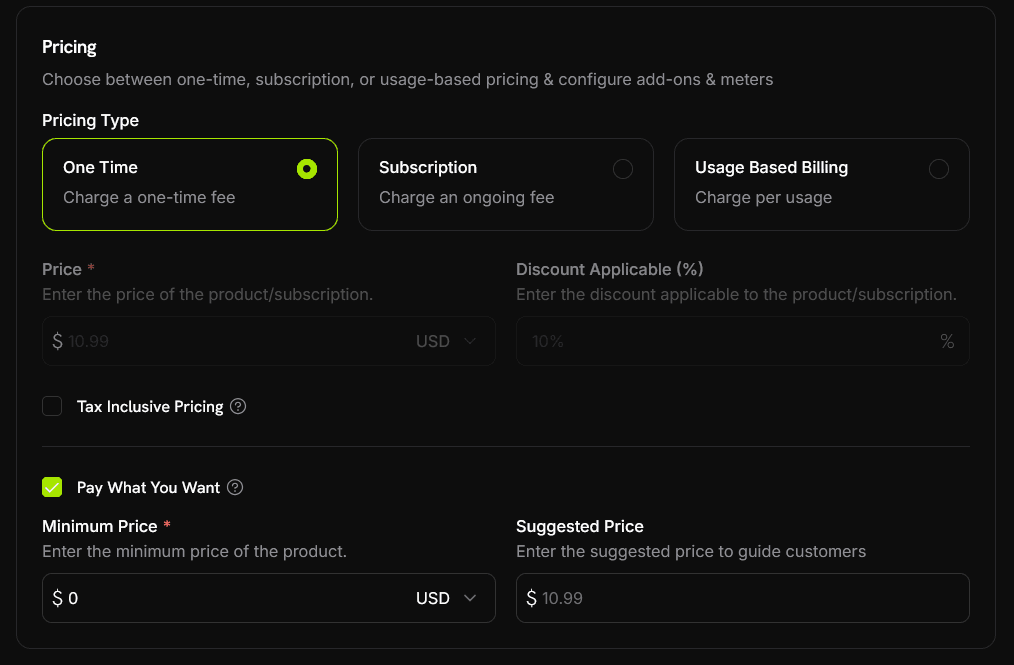
- Save the product and copy its Product ID.
- Switch to the other environment mode (Test or Live) using the toggle in the bottom left, create the second product with the exact same Pay What You Want configuration, and copy its Product ID as well.
Paste both the Test Product ID and Live Product ID into the respective fields in your Scrawn Dashboard onboarding flow to complete your setup.